Fortn1te

each
موجود
موجود
موجود نیست
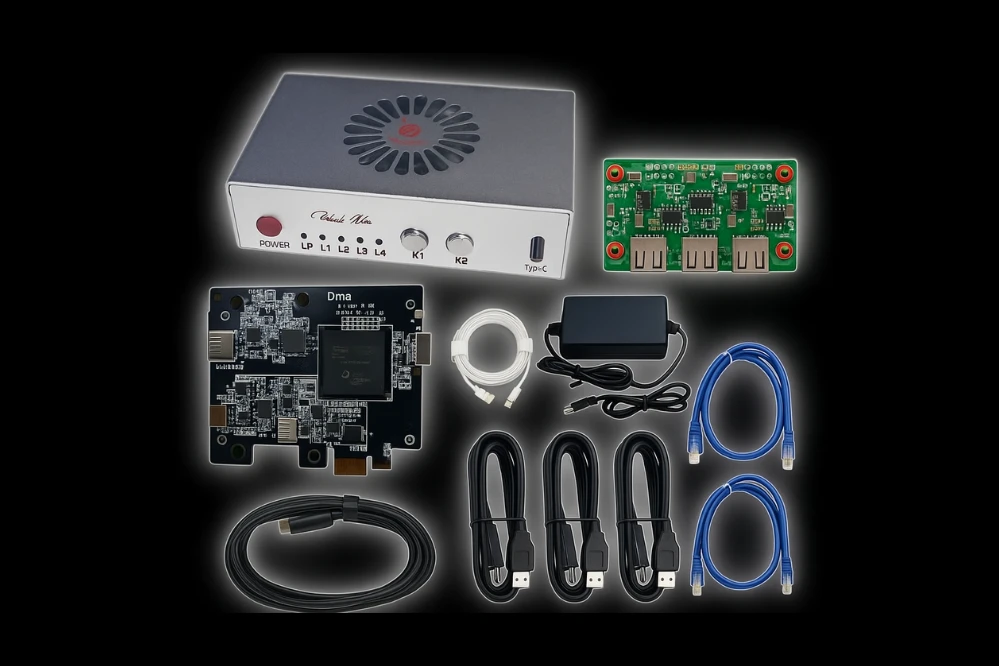
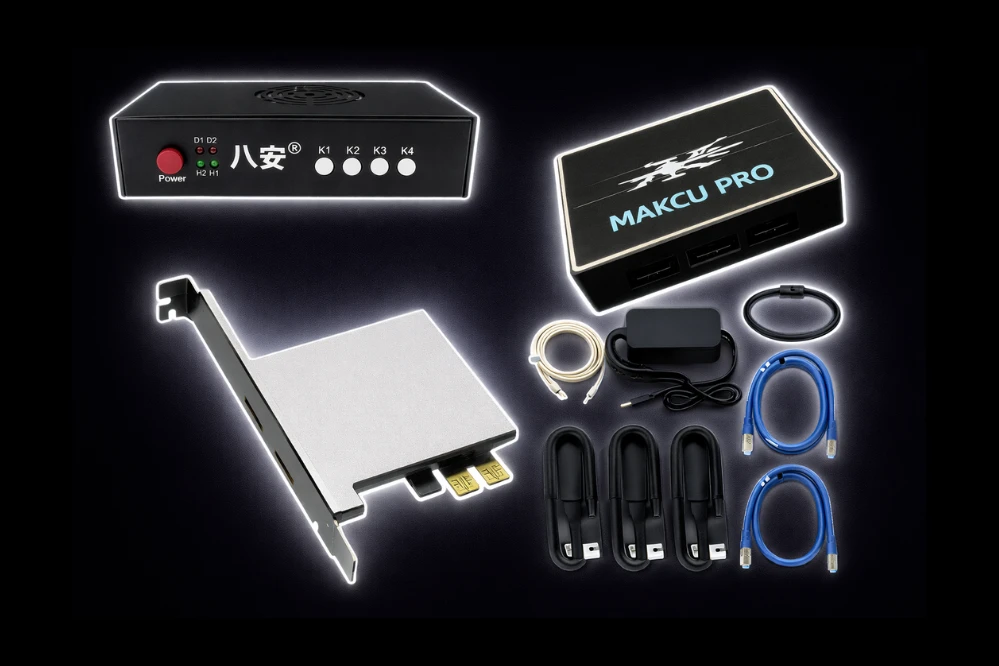
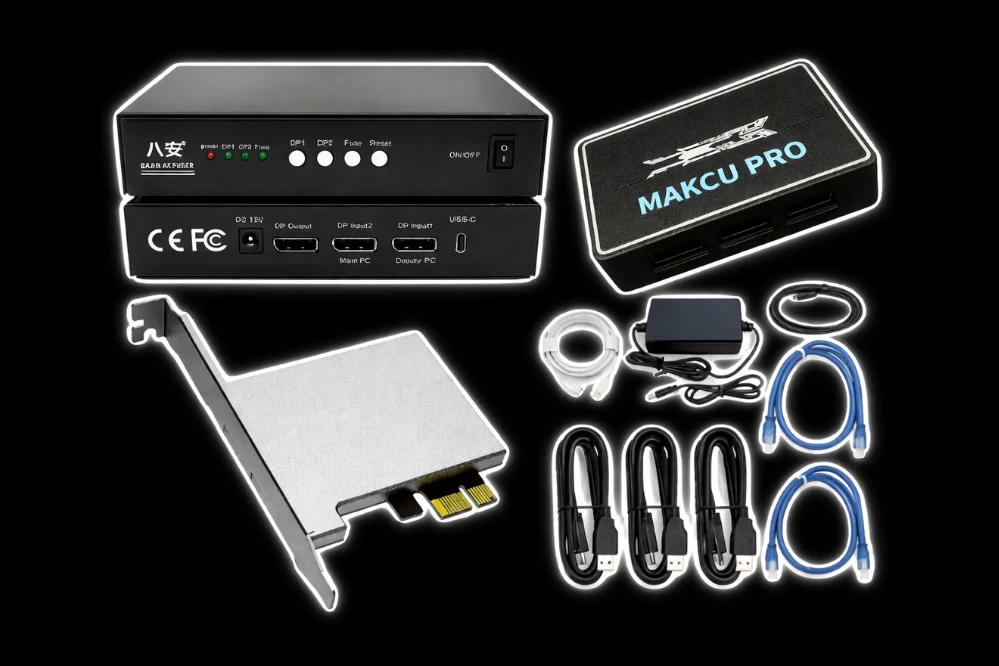
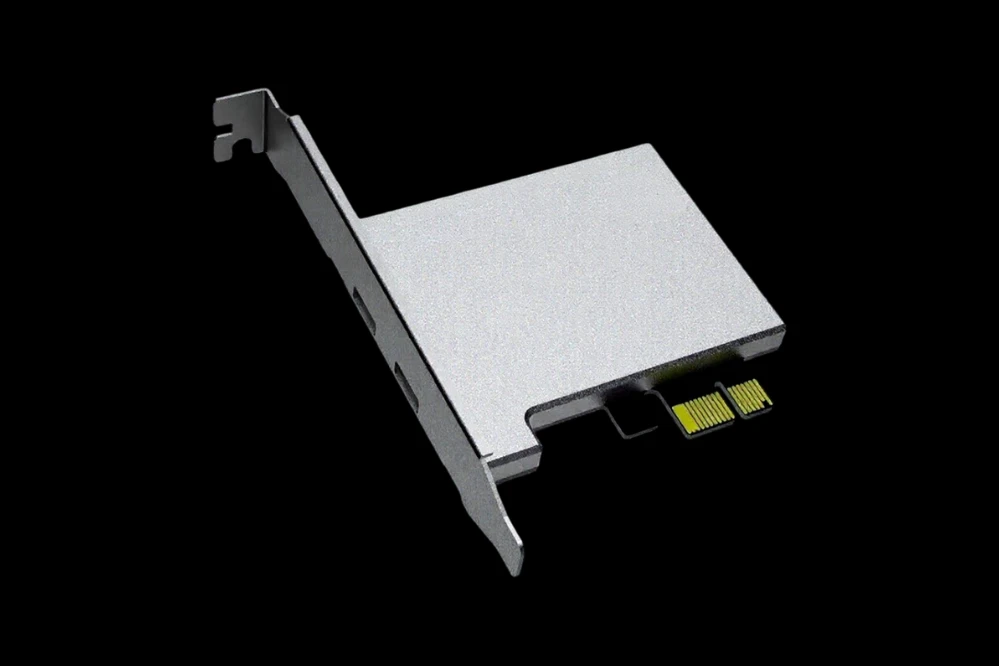
Requires: DMA Card & Unblocked EAC Firmware
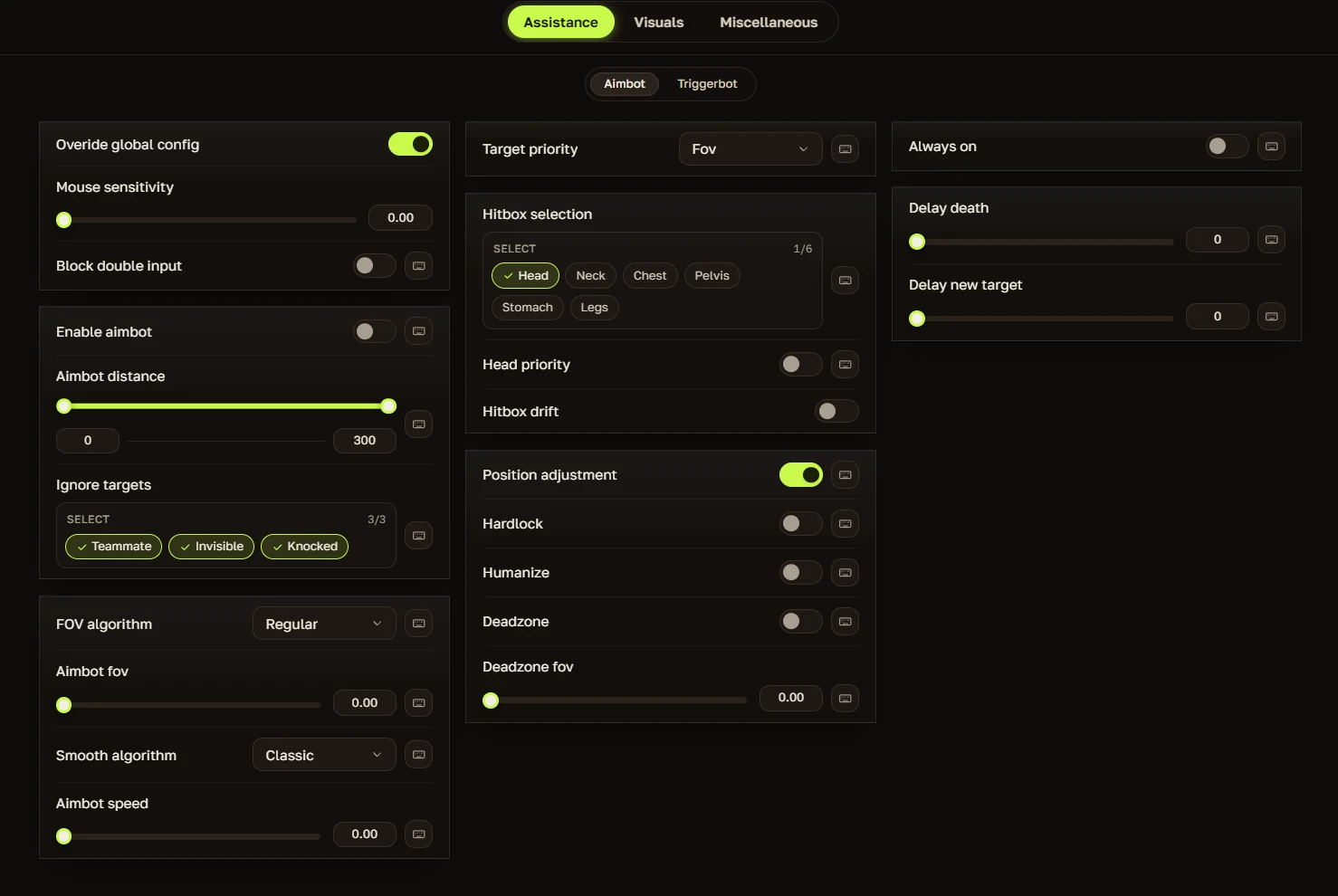
🚫 Aimbot
- Enable Aimbot / Aim Key / Secondary Aim Key – Turns the aimbot on and assigns up to three activation keys (primary, secondary, and hold).
- Per‑weapon configs – Automatically loads separate sensitivity, FOV, and smoothness values based on your current weapon type.
- Mouse sensitivity – Adjusts the overall rotation speed multiplier to control how fast the crosshair moves toward targets.
- FOV & smooth algorithms – Defines a cone-shaped detection zone and applies interpolation between frames to make movement fluid instead of instant.
- Speed control – Caps the maximum angular velocity so the crosshair doesn't overshoot fast targets.
- Target priority – Ranks enemies by factors like distance and health to choose the most relevant target automatically.
- Hitbox selection/drift – Locks onto a chosen body part and adds subtle randomized micro-wobble to mimic natural hand movement.
- Position adjustment – Applies real-time offset corrections to the aim point for better accuracy.
- Hardlock – Engages a persistent sticky aim that does not release until the target is eliminated or manually overridden.
- Humanization – Injects periodic, randomized aim-pauses and curve variations to make tracking look organic.
- Deadzone – Creates a central inactive area where the aimbot does not engage, allowing precise manual micro-adjustments.
- Always‑on – Keeps the aimbot continuously active without requiring a held activation key.
- Ignore targets – Uses team IDs, knockdown status, and user-defined blacklists to exclude specific players.
- Delay (death/new target) – Adds a configurable cooldown before locking onto a new enemy after a kill.
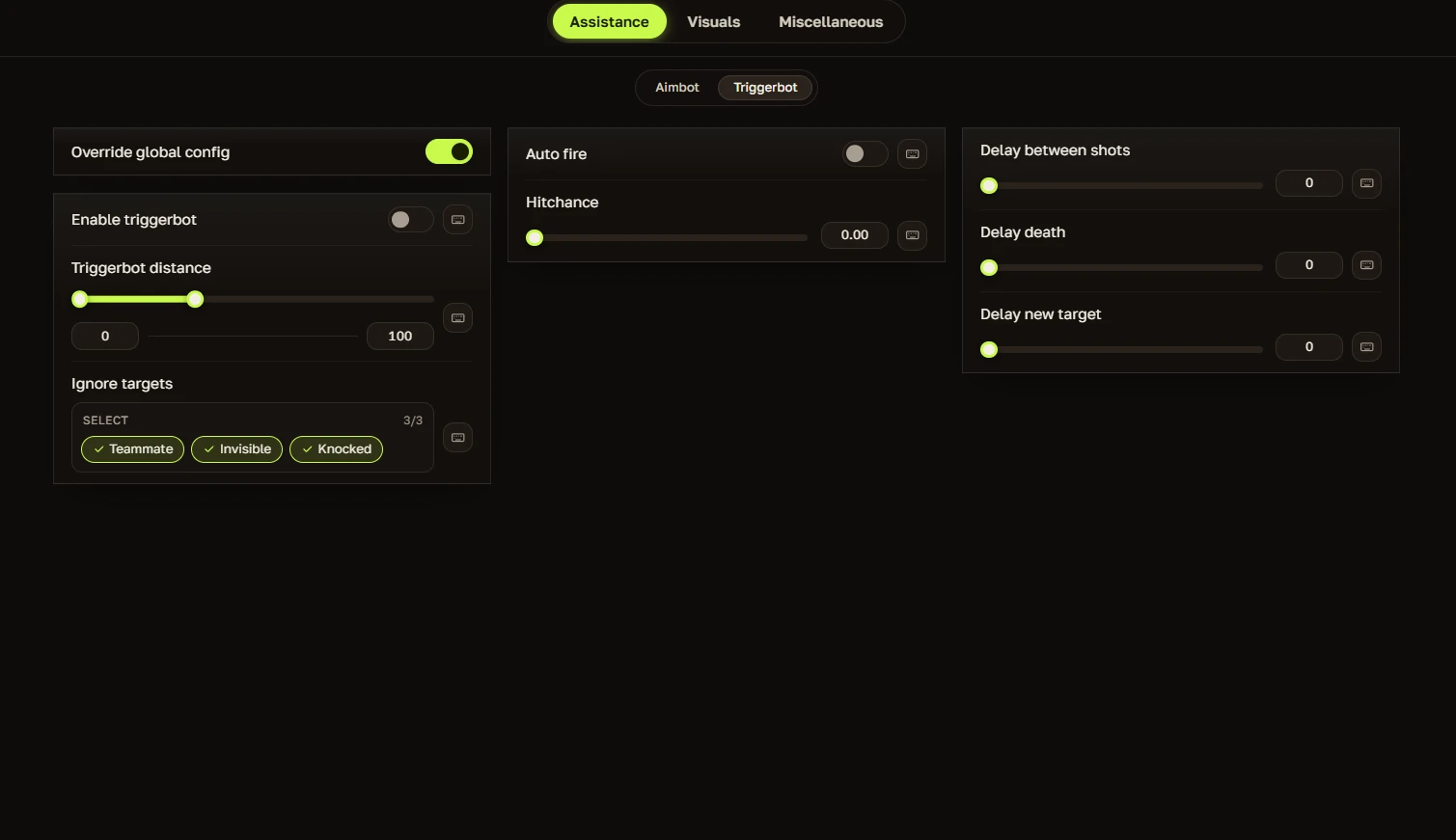
🔫 Triggerbot
- Weapon‑based configs – Loads firing logic and delays tailored to each weapon category.
- Distance limits – Restricts activation to user-defined engagement ranges to prevent wasted shots.
- Hitchance – Calculates the probability of a successful hit and only fires if that percentage exceeds a set threshold.
- Auto‑fire – Automatically pulls the trigger when the crosshair is on a valid target.
- Ignore targets – Excludes teammates, downed players, and other specified entities from firing decisions.
- Shot delay – Inserts a random or fixed pause between shots to simulate human reaction timing.
- Delay controls – Provides separate adjustments for initial shot delay and repeat shot intervals.
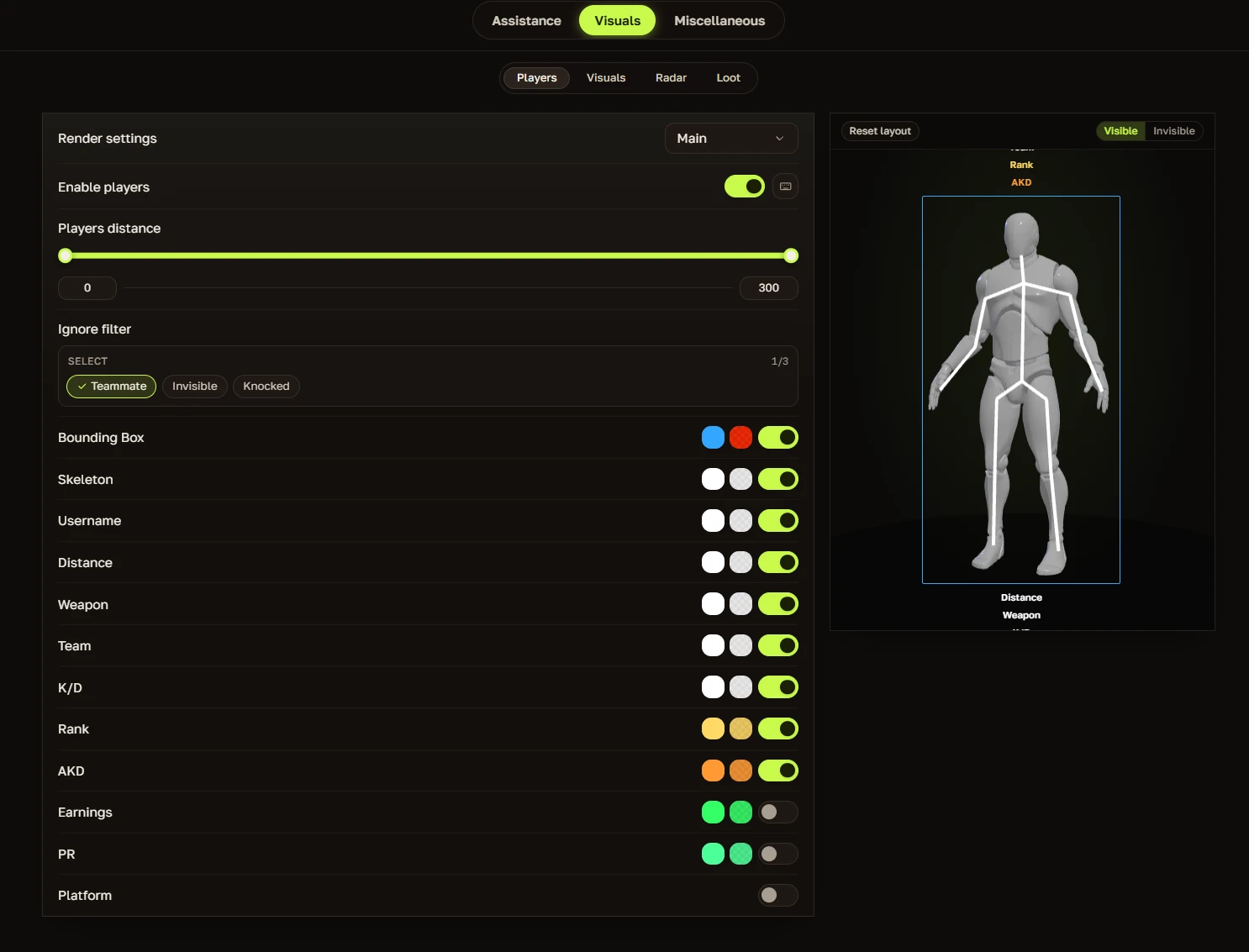
👁️ Player ESP
- Player rendering with distance filter – Draws overlays on players while culling those beyond a set range to reduce clutter.
- Bounding boxes – Renders rectangular outlines around players for quick visual identification.
- Skeletons – Displays joint-based bone structures to help predict movement direction.
- Username, distance, weapon, team, K/D, rank, platform – Shows dynamic text labels pulled directly from game memory.
- Customization (Font: Verdana, font size, skeleton outline/thickness, box thickness/style/width, squad colors, distance fade, text background/rounding, text outline) – Lets you adjust every visual element of ESP to your preference.
- States (Teammate, bot, console, knocked indicators) – Uses distinct icons or colors to instantly differentiate between allies, AI players, console users, and downed enemies.
- Render Layers (Radar, spectator list, compass, keybind status, ESP foreground/background control) – Independently toggles each UI element and controls whether ESP renders on top or behind other overlays.
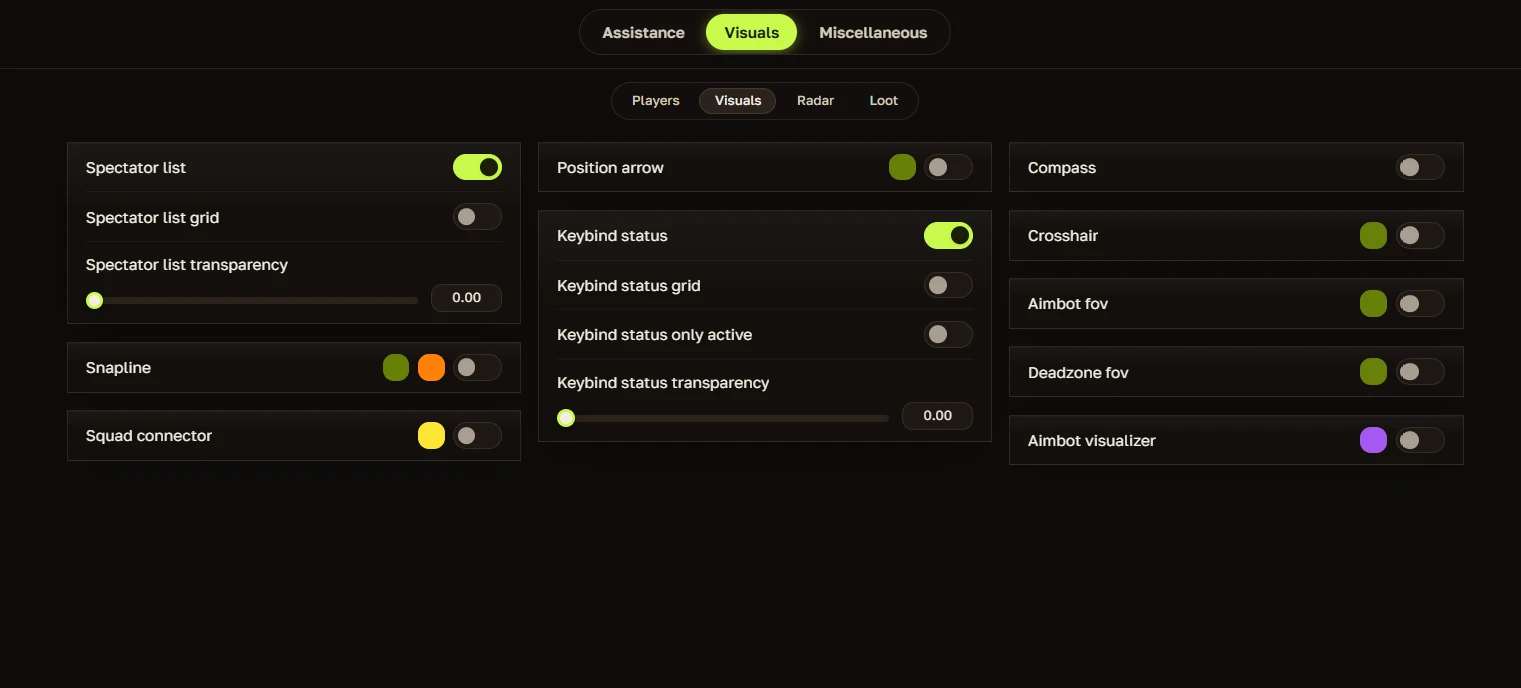
🖥️ Visuals
- Spectator list (grid/transparency) – Displays live viewers in a grid layout with adjustable opacity.
- Snaplines – Draws lines from your crosshair to enemies for rapid orientation.
- Squad connectors – Draws lines between teammates to visualize squad formation.
- Position arrows – Places directional indicators at the screen edges to point toward off-screen enemies.
- Keybind status (grid, active‑only, transparency) – Shows currently active hotkeys in a grid (or only the active ones) with opacity control.
- Compass – Overlays a directional compass at the top of the screen.
- Crosshair – Renders a customizable reticle for consistent centering.
- Aimbot FOV – Visualizes the active detection cone on screen.
- Deadzone FOV – Visualizes the central inactive zone where the aimbot does not engage.
- Aimbot visualizer – Renders both the FOV cone and deadzone circle directly onto the game view for easy calibration.
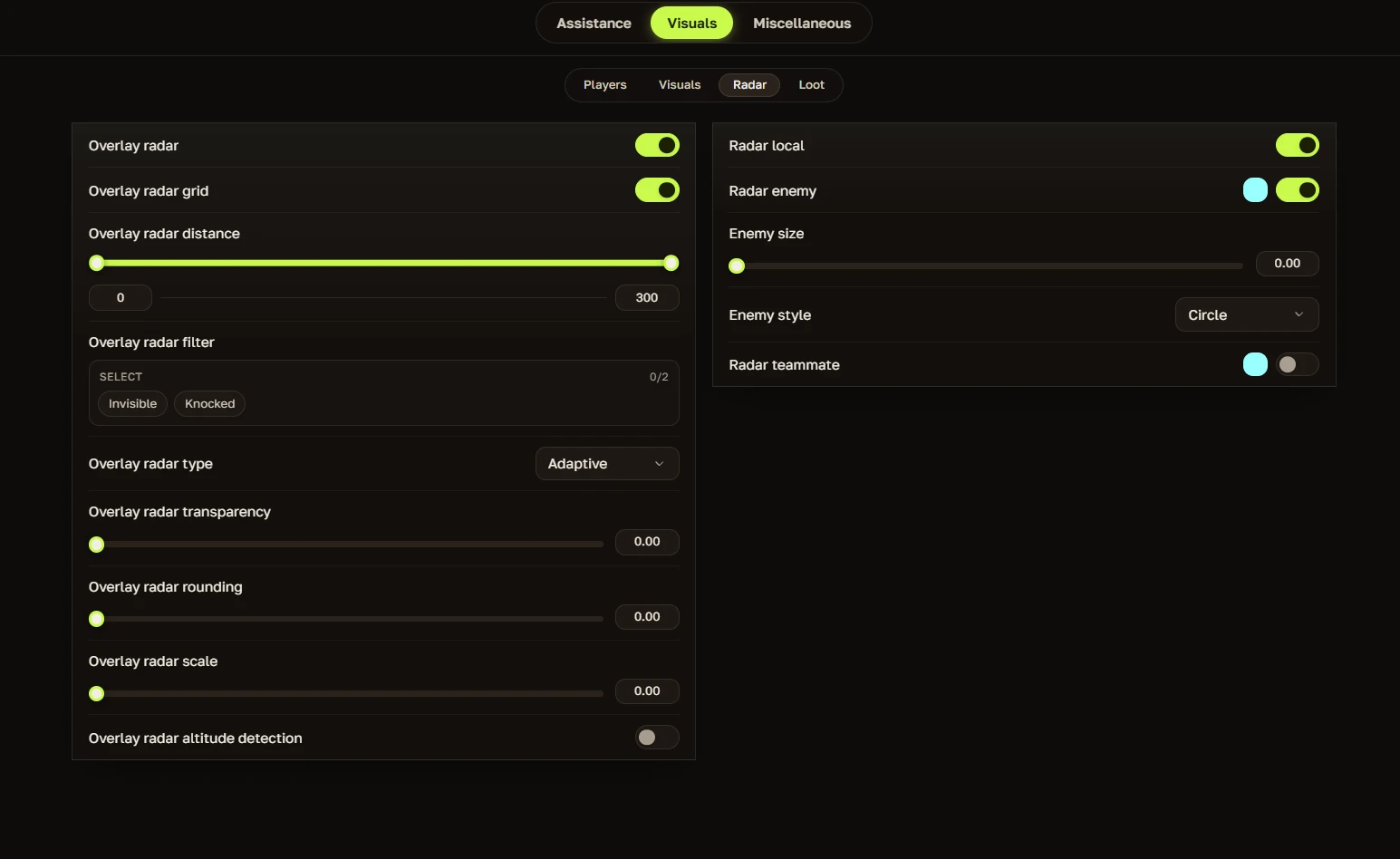
📡 Radar System
- Overlay radar with grid – Displays a transparent minimap directly over the game window with a reference grid.
- Distance scaling – Dynamically zooms the radar based on player spread.
- Filters – Lets you show or hide specific entity types (enemies, teammates, etc.).
- Types – Supports different radar display modes.
- Transparency – Adjusts the opacity of the radar overlay.
- Rounding – Applies corner smoothing to the radar window.
- Scaling – Resizes the entire radar uniformly.
- Altitude detection – Uses vertical coordinates to show whether an enemy is above or below you.
- Local player rendering – Shows your own position with a distinct marker.
- Enemy rendering (size/style) – Renders enemies with customizable shapes and sizes.
- Teammate rendering – Renders allies with a different visual style for quick identification.
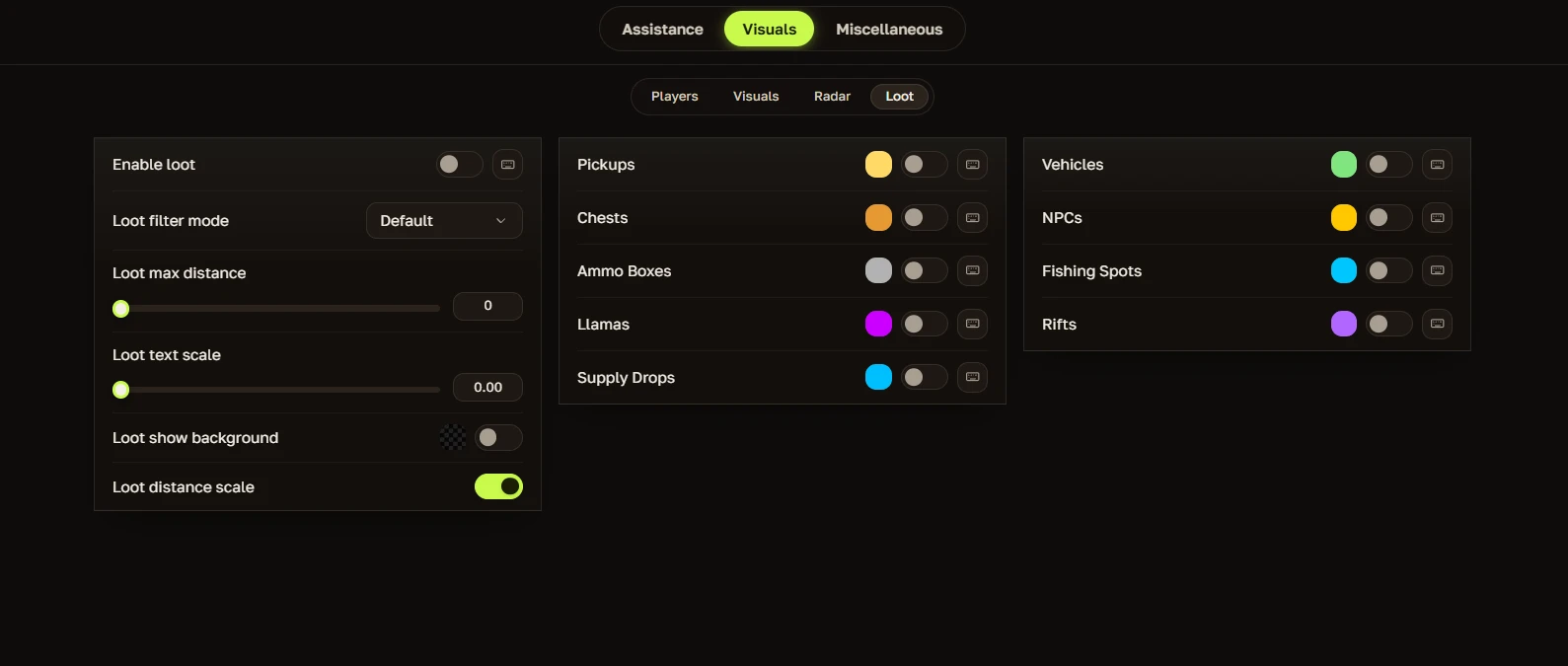
💰 Loot ESP
- Enable loot with default/advanced filters – Turns loot overlays on/off and provides both basic and detailed filtering options.
- Max distance – Culls loot items beyond a user-set range to avoid clutter.
- Distance scaling – Shrinks labels and icons proportionally as items get farther away.
- Text scaling – Adjusts the font size of loot labels independently.
- Background display – Adds a semi-transparent backdrop behind loot labels for better contrast against terrain.
- Supports pickups, chests, ammo boxes, llamas, supply drops, vehicles, NPCs, fishing spots, rifts – Scans memory to highlight every supported interactive item type with a dedicated icon.
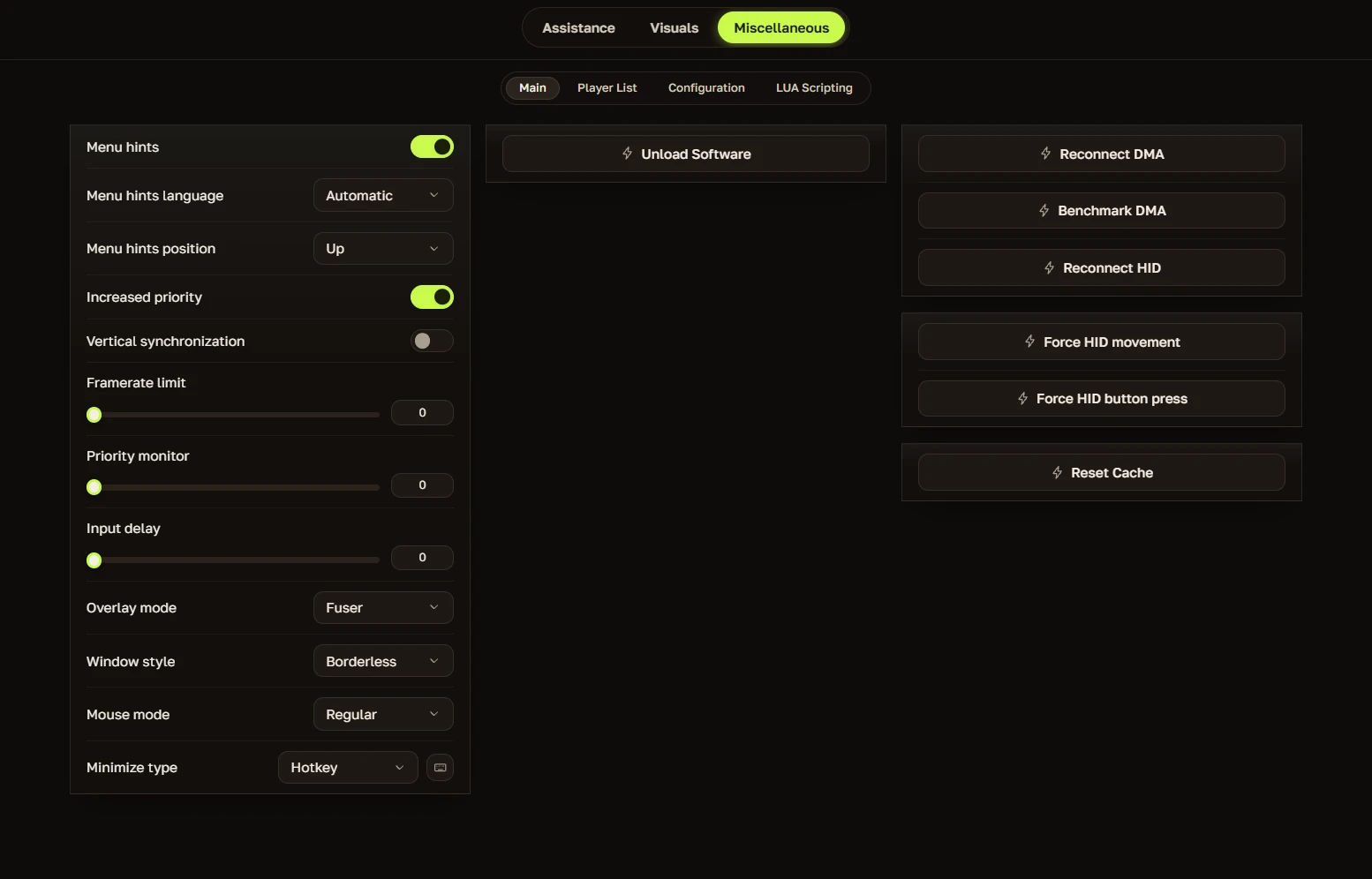
⚡ Performance & System
- Menu hints (language/position) – Displays contextual tooltips in your chosen language and places them away from the crosshair area.
- Increased priority – Forces Windows to allocate higher CPU/GPU resources to the software for stable performance.
- VSync – Synchronizes rendering with your monitor's refresh rate to reduce screen tearing.
- FPS limit – Caps the framerate to reduce power consumption and heat.
- Monitor priority – Assigns the overlay and menu to a specific display in multi-monitor setups.
- Input delay – Fine-tunes the polling rate of mouse inputs.
- Overlay mode – Switches the menu between borderless windowed and exclusive fullscreen rendering.
- Window style – Adjusts the window border and behavior.
- Mouse mode – Locks or unlocks the mouse cursor within the game window.
- Minimize type – Defines behavior when the window loses focus (minimize, stay, etc.).
- Cache reset – Purges temporary rendering buffers and saved shader caches to resolve texture glitches instantly.
🔌 DMA & HID Controls
- Reconnect DMA – Re-establishes the Direct Memory Access link without restarting the software.
- Benchmark DMA – Runs a throughput test to measure DMA data transfer speeds.
- Reconnect HID – Resets the Human Interface Device driver connection to restore peripheral functionality if input becomes unresponsive.
- Force HID movement – Simulates physical mouse movements at the hardware driver level.
- Force HID button press – Simulates mouse clicks at the hardware driver level.
- Unload software – Safely terminates all driver processes and removes the software from active memory, leaving no lingering threads.
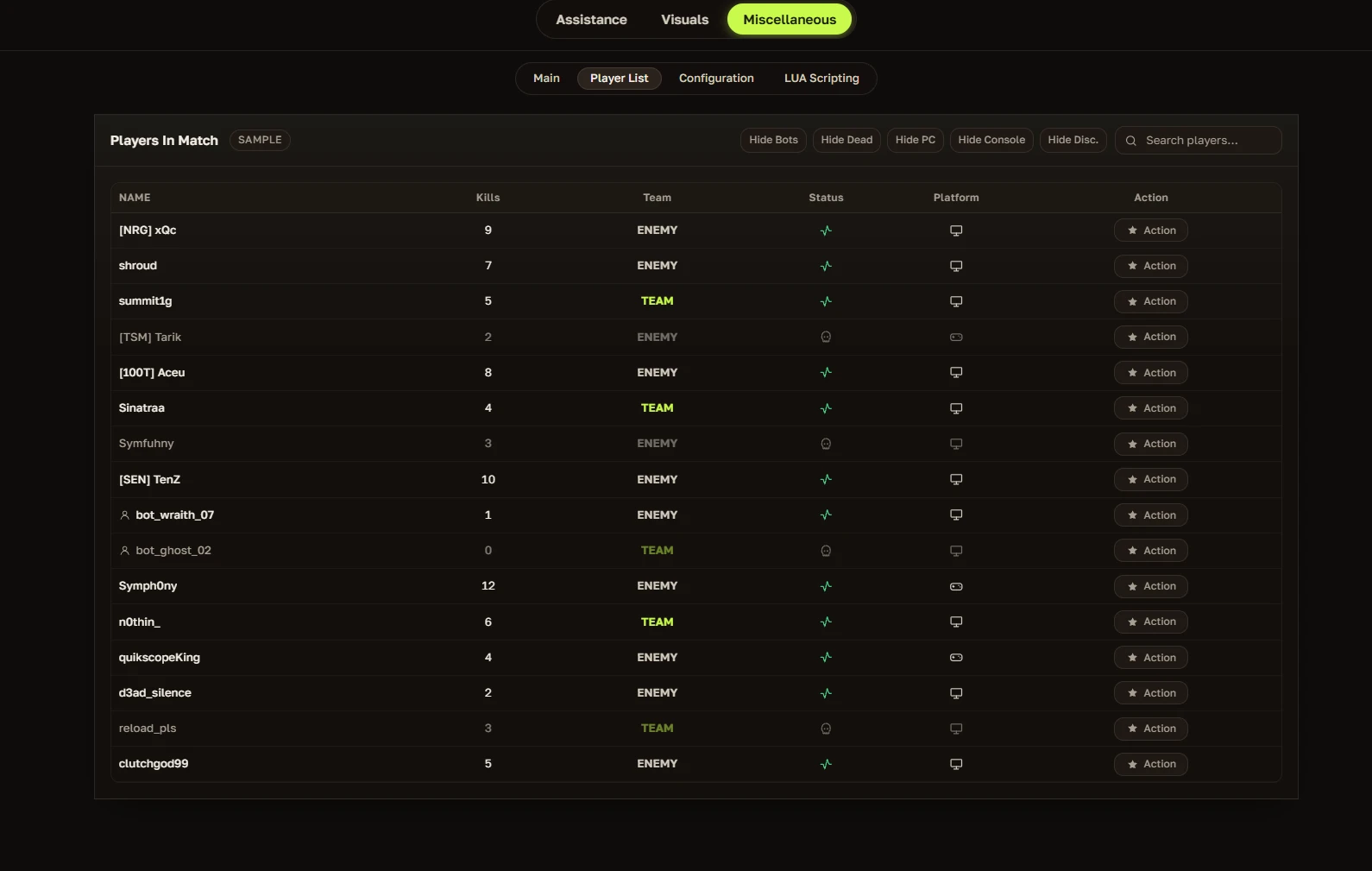
📋 Player List
- Real‑time lobby player list with detailed info – Queries the game's internal player array every few milliseconds and populates a live table with comprehensive stats for every user in the current match.
📂 Config & Scripting
- Local config support – Saves all settings (FOV, colors, filters, hotkeys) to a local file on your machine.
- Cloud config support – Backs up your configuration online so it can sync across multiple PCs.
- Local Lua scripting – Runs custom automation scripts directly from your machine.
- Cloud Lua scripting – Loads or shares scripts from a remote server for community-sourced logic.
🎨 UI Customization
- Menu scale – Uniformly resizes the entire interface.
- Accent color – Lets you pick a dominant highlight color (e.g., neon blue, red, green).
- Window background – Customizes the opacity and color of the main menu window.
- Section background – Customizes the opacity and color of each section panel.
- Widget background – Customizes the opacity and color of individual interactive widgets.
- Config background – Customizes the appearance of the config list area.
- Keybind visuals – Renders assigned hotkeys with distinct stylized badges for quick recognition.
- Text (active/inactive) – Uses bright styling for active toggles and dimmed styling for inactive ones.
- Separators – Horizontal line dividers that keep the menu structured and easy to navigate.
Automatic feedback after 7 days.
Automatic feedback after 7 days.
Automatic feedback after 7 days.
Automatic feedback after 7 days.
وارد حساب کاربری خود شوید
مرورگر شما پنجرهٔ دیسکورد را مسدود کرد. برای این سایت پاپآپها را فعال کنید و دوباره تلاش کنید.
ورود به دیسکورد ناموفق بود. لطفاً دوباره تلاش کنید.















No matches here — press Enter to search everything.
برای جستجوی محصولات تایپ کنید.