War Thunder
each
Varastossa
Varastossa
Ei varastossa
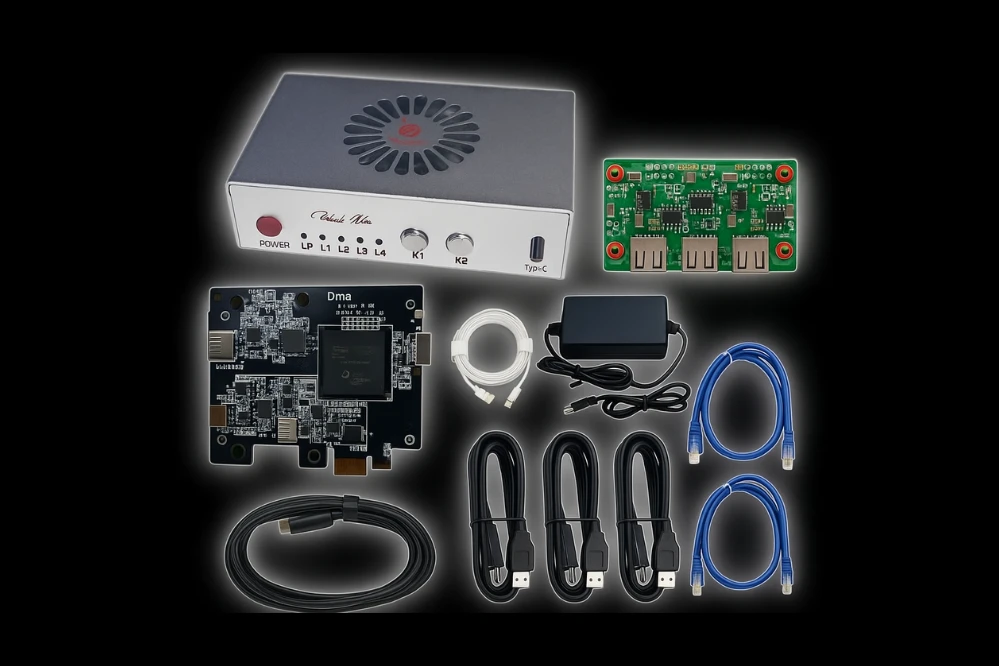
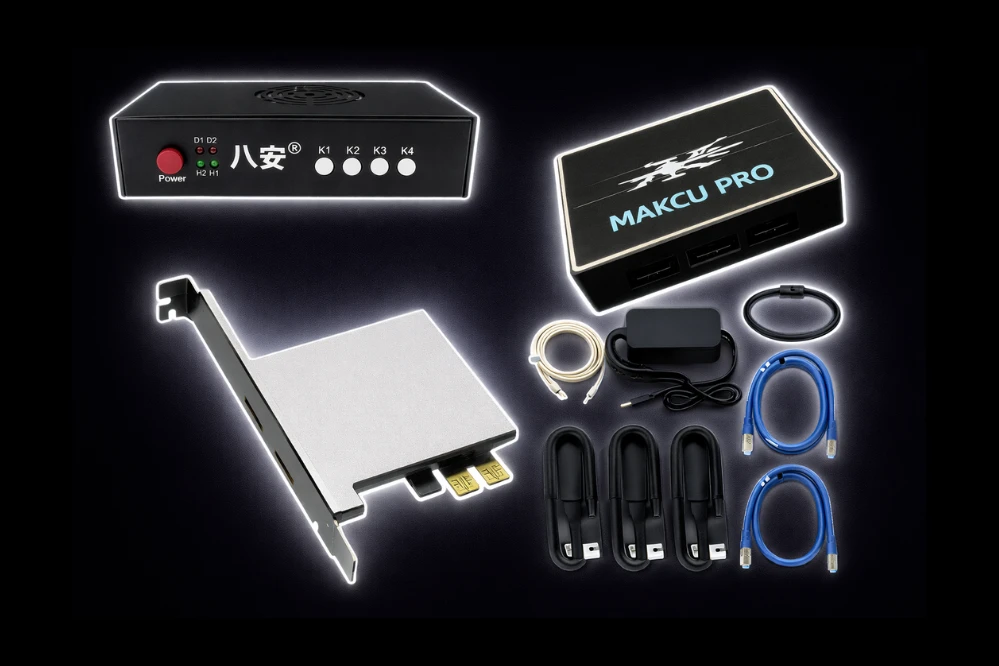
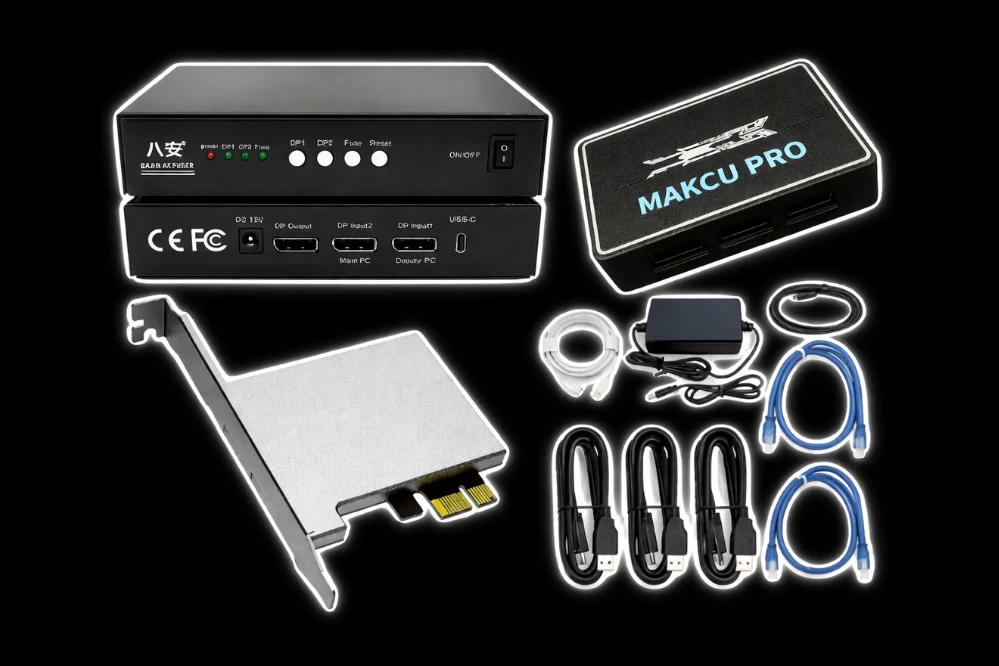
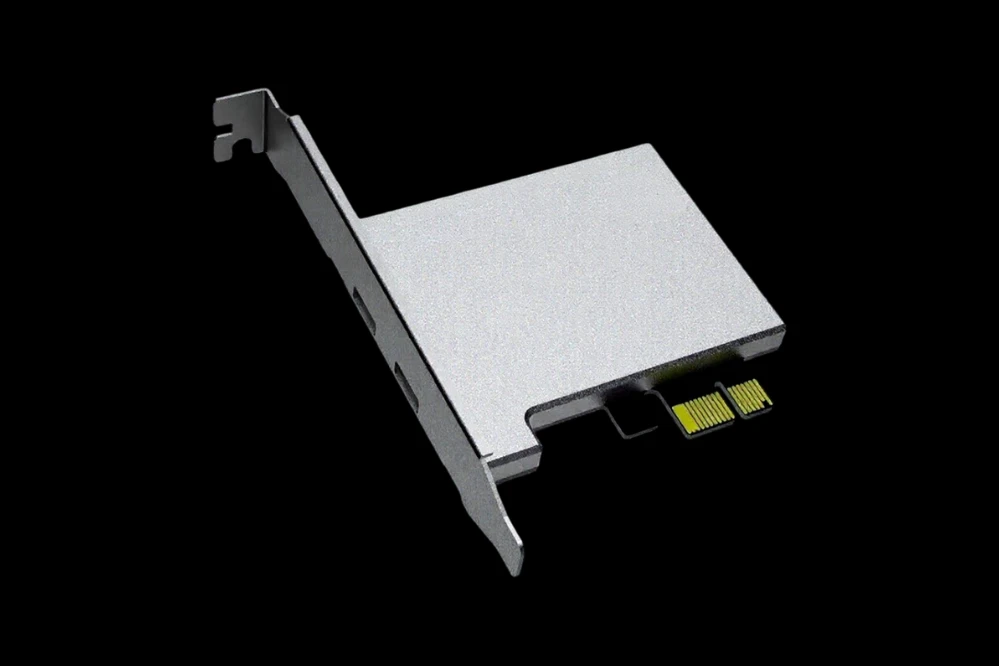
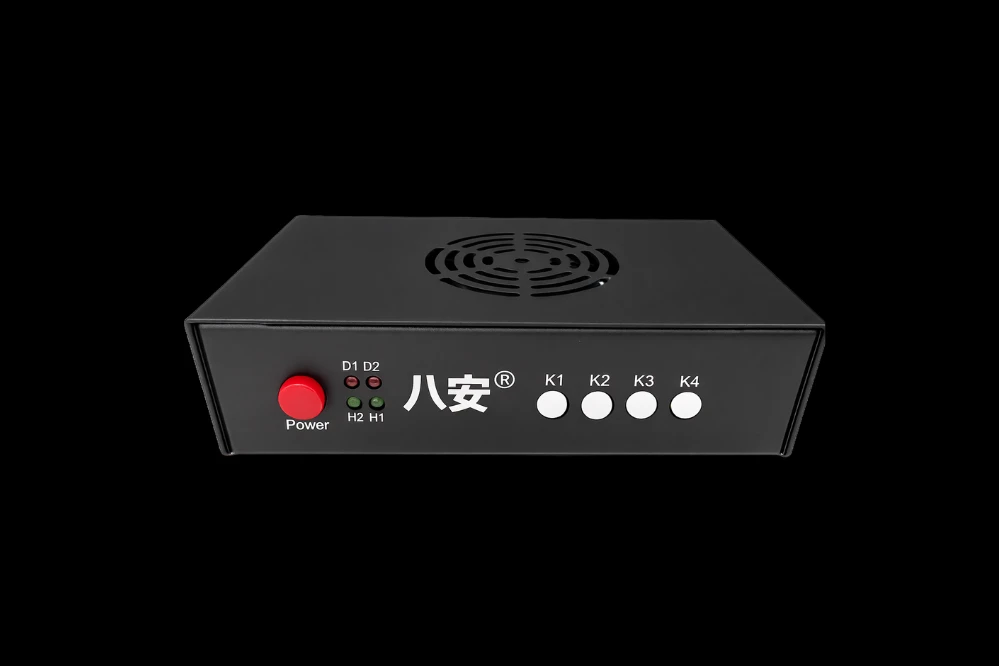
Requires: DMA Card
Supported Platforms: Steam
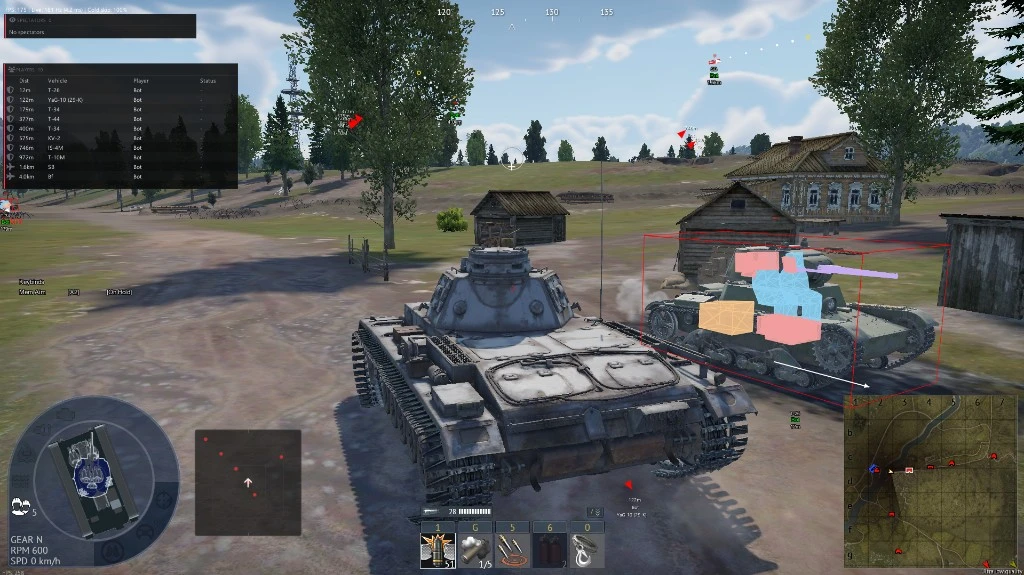
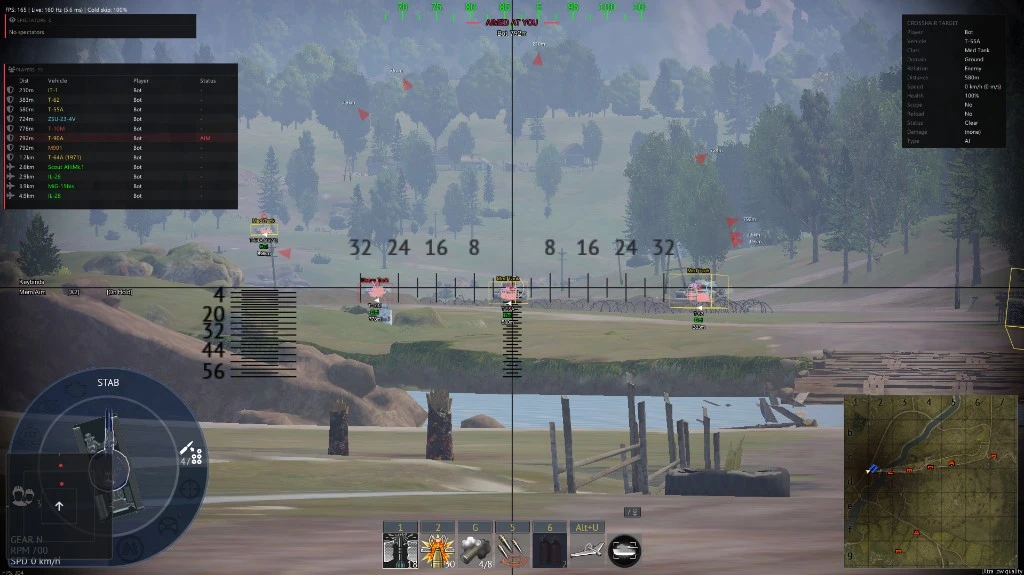
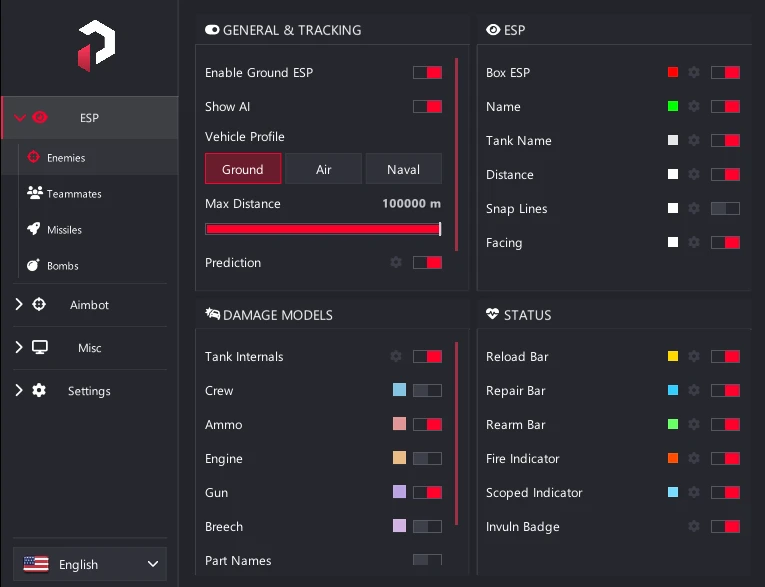
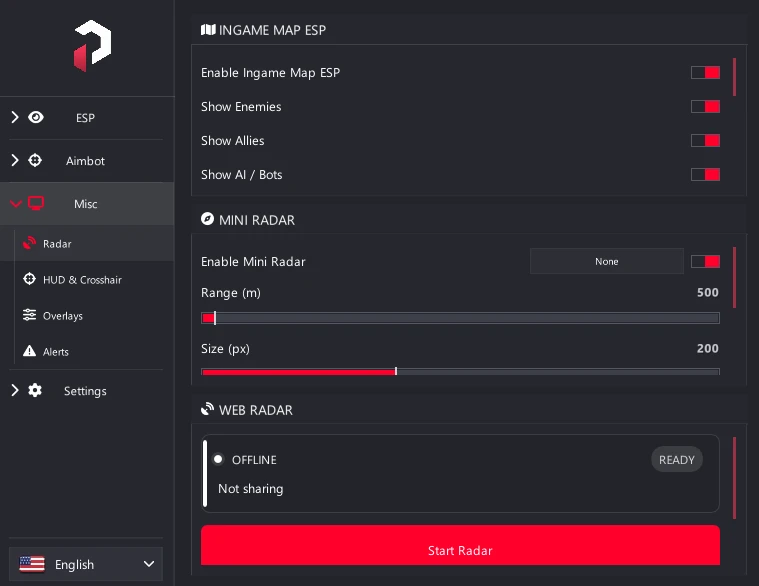
👁️ Ground ESP
- Enable ground ESP – Master toggle for all ground vehicle tracking
- Box around enemies – Draw boxes around ground targets with customizable style, thickness, color, and max distance
- Name – Display player names above ground vehicles
- Tank name – Show the specific tank model being used
- Distance – Display exact range to each ground target
- Reload bar – Show enemy reload progress for tactical engagement timing
- Facing – Display the direction the enemy vehicle is pointing
- Snap lines – Draw lines from your position to detected ground targets
- Internals – Highlight crew, engine, and ammo locations with per-part colors
- Damaged parts – Show which components are damaged or destroyed
- Repair bar – Display repair progress for damaged vehicles
- Rearm bar – Track ammunition reloading progress
- Fire indicator – Alert when an enemy vehicle is on fire
- Scoped indicator – Show when an enemy is aiming down sights at you
- Gun impact – Display where enemy shots are impacting
- Prediction indicator – Show predicted shell trajectory and impact point
- Invulnerability badge – Display when an enemy is temporarily invulnerable
- Last seen – Show when and where a target was last spotted
- Danger warning – Alert when a high-threat enemy is targeting you
✈️ Air ESP
- Enable air ESP – Master toggle for all aircraft tracking
- Box – Draw boxes around aircraft with customizable style, thickness, color, and max distance
- Name – Display player names above aircraft
- Distance – Show exact range to each airborne target
- Reload bar – Display weapon reload progress
- Snap lines – Draw lines from your position to detected aircraft
- Fire indicator – Alert when an enemy aircraft is on fire
- Scoped indicator – Show when an enemy is aiming at you from the air
- Gun impact – Display where enemy rounds are impacting
- Prediction indicator – Show predicted flight path and intercept point
- Invulnerability badge – Display temporary invulnerability status
- Last seen – Track when and where an aircraft was last spotted
- Danger warning – Alert when an enemy aircraft poses a high threat
💥 Projectiles
- Show incoming shells and missiles – Display inbound projectiles on screen with tracking
- Show outgoing shells and missiles – Track your own fired projectiles
- Distance labels – Show range to incoming and outgoing projectiles
- Styling options – Customize the appearance of projectile indicators
⚓ Naval ESP
- Enable naval ESP – Master toggle for all naval vessel tracking
- Box around ships – Draw boxes around naval targets with customizable styling
- Name – Display player names above ships
- Distance – Show exact range to each naval target
- Related naval ESP options – Additional naval-specific tracking and display settings
🛠️ Misc
- On-screen keybinds – Display active keybinds on screen with customizable position and color
- Player list – Show a list of all players in the match
- Streamer mode – Hide sensitive information for streaming purposes
- Auto team detect – Automatically identify friendly and enemy teams
- Aimed at you – Color-coded alert when enemies are targeting you
- Spectator list – Display who is spectating you
- Crosshair inspect – Draggable panel showing detailed crosshair target information
🧭 Out of FOV
- Arrows pointing to enemies – Display directional arrows for threats outside your view
- Separate toggles – Independent controls for Tanks/Ground and Planes/Air
- Arrow size – Adjust the visual size of off-screen indicators
- Arrow distance – Control how far arrows appear from the edge of screen
- Arrow color – Customize the color of off-screen indicators
🎨 Class Colors
- Enable per-vehicle-class colors – Toggle color-coding by vehicle type
- Color pickers – Custom colors for each class — Heavy, Medium, SPAA, and more
- Show class label – Display the vehicle class name on ESP
- Color-only without text – Show only the color indicator without text labels
- Tint box or name – Apply class colors to boxes or name tags when boxes are disabled
🗺️ Radar
- Enable radar mini-map – Toggle the radar overlay
- Range – Set the detection radius of the radar
- Size on screen – Adjust the visual size of the radar display
- Background transparency – Control radar background opacity
- Circle vs square shape – Choose between circular or square radar display
- Show projectiles – Display incoming and outgoing projectiles on the radar
🎯 Combat
- Connection – Configure device connections for hardware aim
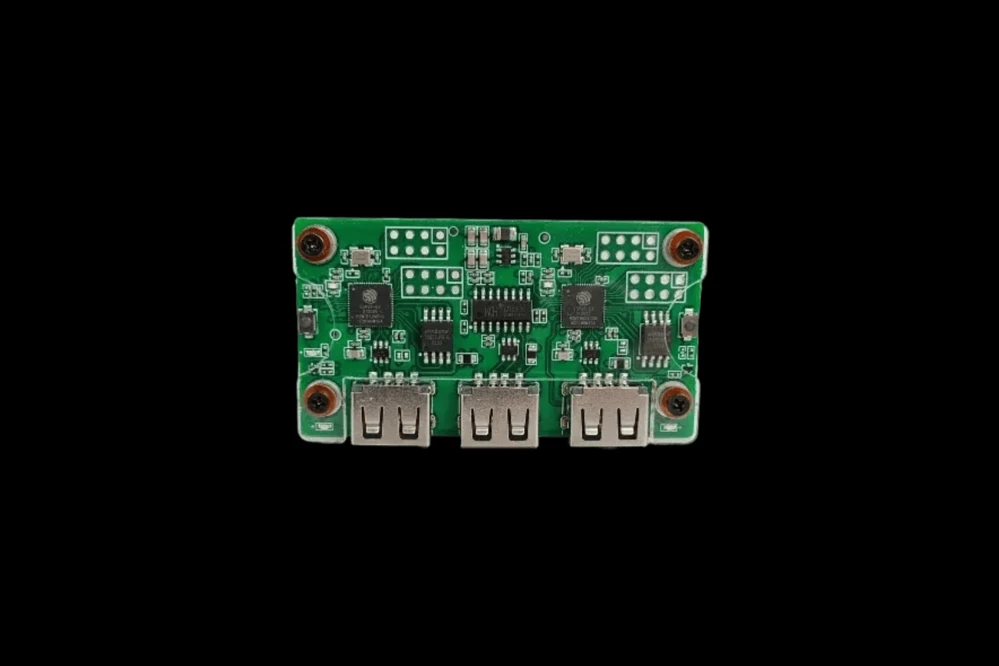
- Device type – Select from Kmbox USB, Kmbox Net, Macku, or Macku Controller
- Auto connect on startup – Automatically connect the device when the software launches
- COM port and baud rate – USB device connection settings
- IP, port, and MAC – Network Kmbox connection settings
- Connect, Disconnect, and Test – Connection management and diagnostics
- Aimbot and triggerbot settings – Appear after a device is successfully connected
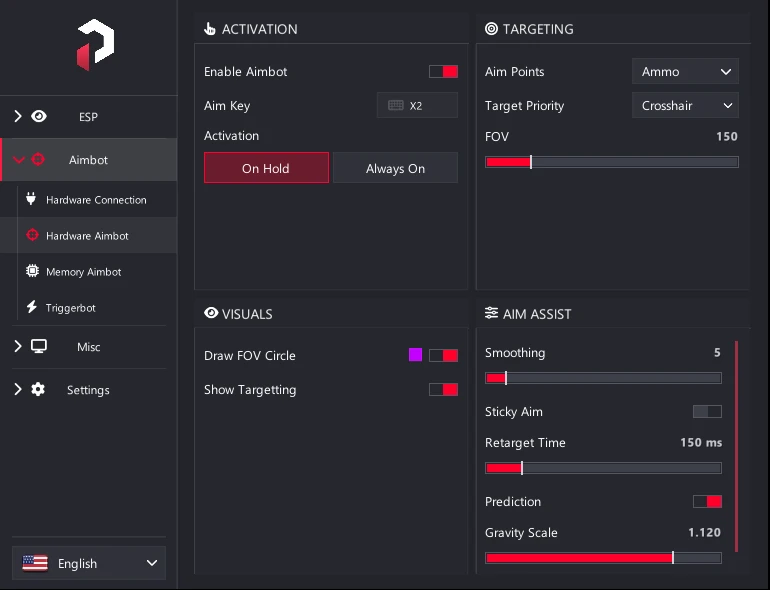
🎯 Hardware Aimbot
- Enable aimbot – Master toggle for hardware-based aim assist
- Aim key – Assign a key to activate the aimbot
- Activation – Choose between hold key or always on
- Aim points – Select from center, crew, turret, engine, or ammo
- Target priority – Choose closest to crosshair, closest by distance, or lowest HP
- FOV – Set the aimbot's field of view
- Draw FOV circle – Display the FOV circle with custom color
- Show targeting – Visual indicator of current target
- Max range – Uses live weapon range when available
- Smoothing – Adjust aim transition speed for natural movement
- Prediction – Choose between Advanced or Simple prediction
- Simple prediction – Toggle bullet drop on/off and adjust gravity scale
🎯 Memory Aimbot
- Enable memory writes – Master switch that must be on first
- Enable aimbot – Toggle for memory-based aim assist
- Aim key – Assign a key to activate the aimbot
- Activation – Choose between hold key or always on
- Aim points – Select from center, crew, turret, engine, or ammo
- Target priority – Choose closest to crosshair, closest by distance, or lowest HP
- FOV – Set the aimbot's field of view
- Draw FOV circle – Display the FOV circle with custom color
- Show targeting – Visual indicator of current target
- Max range – Uses live weapon data when available
- Smoothing – Adjust aim transition speed for natural movement
- Prediction – Choose between Advanced or Simple prediction
- Simple prediction – Toggle bullet drop on/off and adjust gravity scale
- Direct aim – Moves your view angles in-game directly, independent from hardware aim
🔫 Triggerbot
- Enable triggerbot – Master toggle for automatic firing
- Trigger key – Assign a key to activate the triggerbot
- Activation – Choose between hold or always on
- Delay before firing – Add a brief delay between detection and firing
- FOV – Set the triggerbot's field of view
- Draw FOV circle – Display the FOV circle
- Max distance – Set the maximum engagement range
- Aim points – Select target points
- Target priority – Choose targeting priority
🎯 Crosshair
- Show crosshair overlay – Toggle custom crosshair display
- Style – Choose from cross, dot, circle, and more
- Size – Adjust the visual size of the crosshair
- Thickness – Control the thickness of crosshair lines
- Gap – Set the gap between crosshair elements
- Color – Customize the crosshair color
- Outline – Toggle outline visibility
- Center dot – Show or hide the center dot
- Show when scoped – Display crosshair while zoomed
- Hide when aiming – Hide crosshair while aiming down sights
⚙️ Settings
- Save new config – Save current settings as a new profile
- Load selected profile – Load a saved configuration profile
- Overwrite current profile – Save changes to the active profile
- Delete profile – Remove a saved profile (Default cannot be deleted)
- Active profile name – Display the currently loaded profile
- Browse saved profiles – View and manage all saved profiles
⌨️ Keybinds
- Menu toggle key – Assign a key to open and close the menu
- Debug overlay key – Toggle the debug overlay
- Reinitialize ESP key – Refresh ESP data with a keybind
- Reinitialize ESP button – Manual refresh button for stale match data
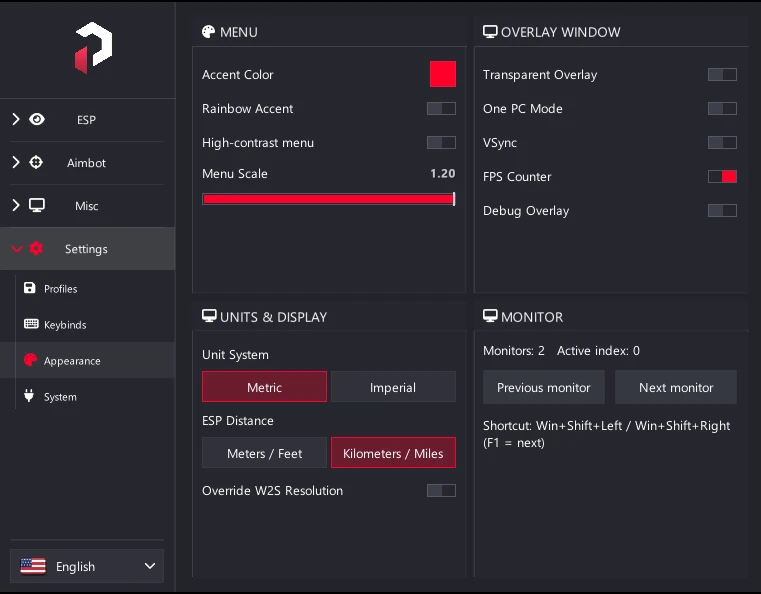
🎨 Menu
- High-contrast menu – Easier to read on capture setups
- Accent color – Customize the menu's accent color
- Rainbow accent – Enable rainbow color cycling for the menu
- Menu scale – Adjust the overall size of the menu interface
🖥️ Overlay
- Transparent overlay – Make the overlay see-through
- One PC mode – Click-through functionality when menu is hidden
- VSync – Synchronize overlay with monitor refresh rate
- FPS counter – Display current frames per second
- Debug overlay – Show technical debug information
- Override screen resolution – Manual resolution adjustment for correct ESP placement
- Custom width and height – Set custom resolution values when override is enabled
🔌 DMA / Input
- Status cards – Visual indicators for game connection status
- Reading pipeline status – Show current read pipeline activity
- Input status – Display input connection status
- Hardware mouse status – Show hardware mouse connection status
- Informational only – Displays whether components are connected and working properly
Automatic feedback after 7 days.
Automatic feedback after 7 days.
Automatic feedback after 7 days.
Automatic feedback after 7 days.
 Someone in AE purchased
War Thunder
Vahvistettu
Someone in AE purchased
War Thunder
Vahvistettu
Someone in NL purchased
War Thunder
Vahvistettu
Someone in AE purchased
War Thunder
Vahvistettu
Someone in AE purchased
War Thunder
Vahvistettu
Someone in AE purchased
War Thunder
Vahvistettu
Someone in AE purchased
War Thunder
Vahvistettu
Someone in NL purchased
War Thunder
Vahvistettu
Someone in AE purchased
War Thunder
Vahvistettu
Someone in AE purchased
War Thunder
Vahvistettu
Kirjaudu tilillesi
Selaimesi on estänyt Discord-ikkunan. Salli ponnahdusikkunat tällä sivustolla ja yritä uudelleen.
Discord-kirjautuminen epäonnistui. Yritä uudelleen.
































No matches here — press Enter to search everything.
Kirjoita hakusana tuotteiden hakemiseksi.